



Introduction
If you have been trying to add no right click on images in your WordPress site, then this post is for you! In this article we will cover the steps required to do so.
Importance of adding No Right Click on WordPress Images?
It is now simpler than ever to share your work with the world thanks to the internet, but it has also made it simpler for individuals to steal your photos.
These individuals could utilise your material to advertise swindles or fake goods. They could even sell your digital artwork and images online, profiting from your labour of love while you receive no compensation.
Someone may even take your images and use them to impersonate you online if you are an online influencer or have a large social media following. For instance, they can pose as one of your affiliate marketing partners.
Your personal images could still be used in internet frauds like bogus reviews or adverts, even if all you do is create a WordPress blog.
Fraudsters could even extract the text and photos from your WordPress blog in order to repost them elsewhere online. Your WordPress SEO may suffer as a result of this redundant material.
While there isn’t a single solution that will totally stop image theft, you can reduce the appeal of your website to potential thieves.
Method of Adding No Right Click to All Your WordPress Images:
Using No Right Click Image is the simplest approach to safeguard your photographs. By limiting right-clicking to photos exclusively with this free plugin, visitors may still right-click on all of your other content, including links.
Depending on whether the visitor is signed into their account, you may additionally activate and disable right-click. This is ideal if you own a membership-based stock picture website or another type of website that only accepts subscribers.
You must install and activate the plugin first. If you want assistance, get in touch with us, and our support staff will help you set up a WordPress plugin.
After the plugin is activated, go to Settings » No Right Click Pictures to modify its preferences.

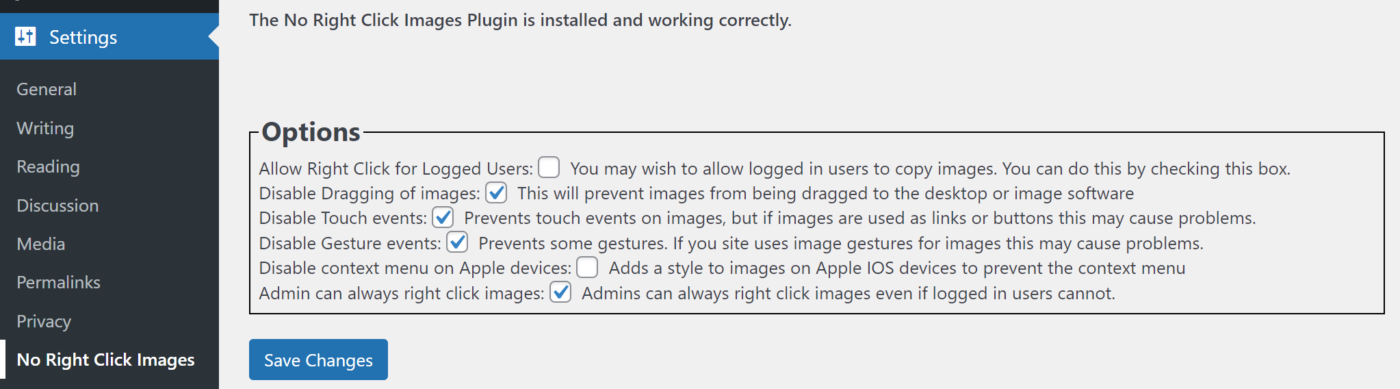
The default settings ought to be adequate for the majority of users, but it’s still important to determine whether you require any adjustments. You may use these settings in particular to seal any openings that users might exploit to circumvent the no right-click protection.
The plugin prevents image dragging by default, preventing users from copying a picture by dragging it to their desktop or another tab. In light of this, we constantly advise leaving “Disable Dragging of images” selected.
You may now access your website and log out of your WordPress admin account. Just right-click any image to verify if the plugin is operational.
Conclusion
WordPress is a great platform to publish your content, but it can be intimidating for beginners. If you’re new to WordPress, or even more experienced but still need some help setting up your site, we’re here to help! We have over 7 years of experience working with WordPress and other open source technologies like PHP, JS, WordPress plugins and themes, so if you need some assistance with any aspect of setting up your website please reach out today by filling out an online form or calling us directly at +919635942928 for immediate assistance.